1.5.3 Enrolling a student/admin
Enrolling a student/admin/tutor
Learn how to add students, admins, and tutors to your academy and assign them to the right programs.
In this tutorial, you'll
Enroll a Student
Enroll an Admin
Enroll a Tutor
Enroll a Parent
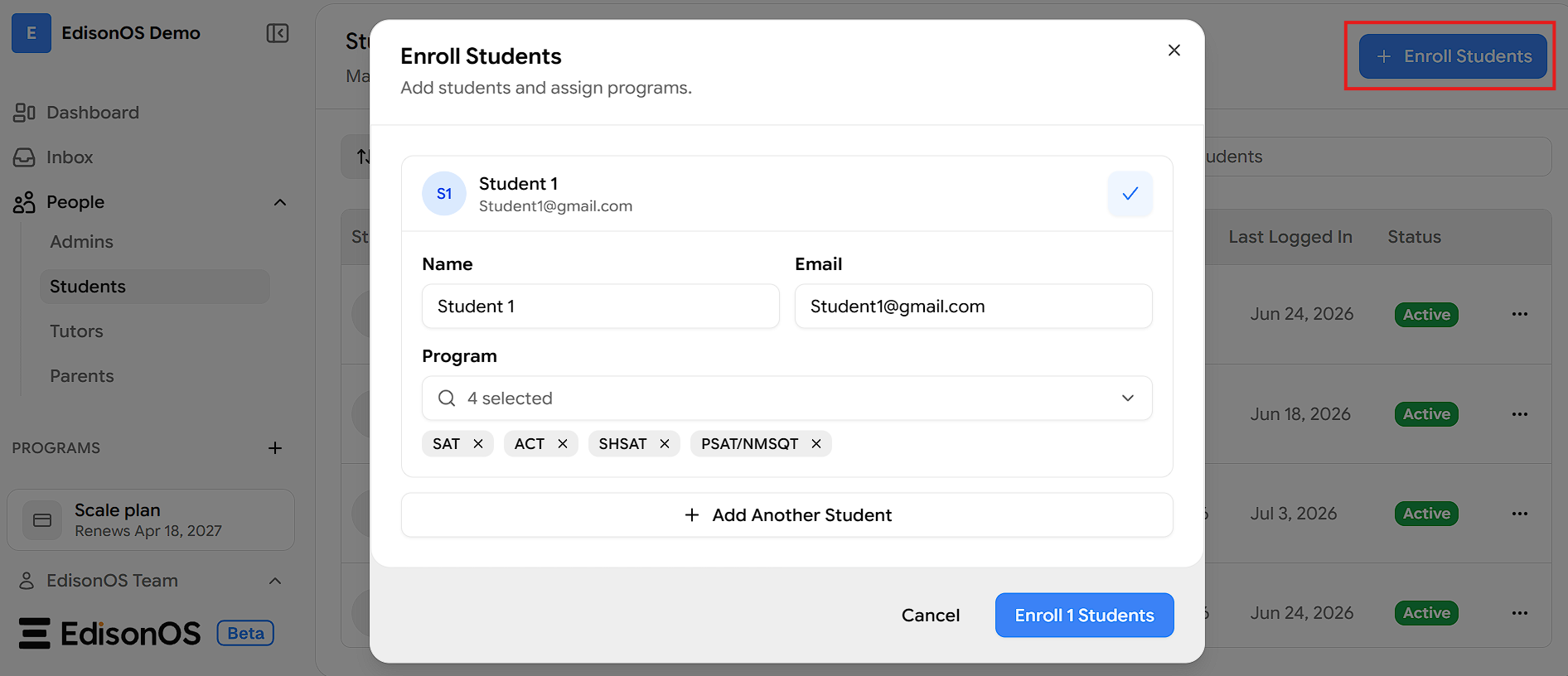
Enroll a Student
Navigate to the People section in the left sidebar and click on Students.
Click the + Enroll Students button on the top right corner.
In the Enroll Students modal, fill in the following details:
Name: Enter the student's full name.
Email: Enter the student's email address.
Program: Select the program(s) you want to assign to the student.
To add more students at once, click + Add Another Student and repeat the steps above.
Once done, click Enroll Students to confirm.
Students will receive their login credentials by email shortly after enrollment.
Enroll an Admin
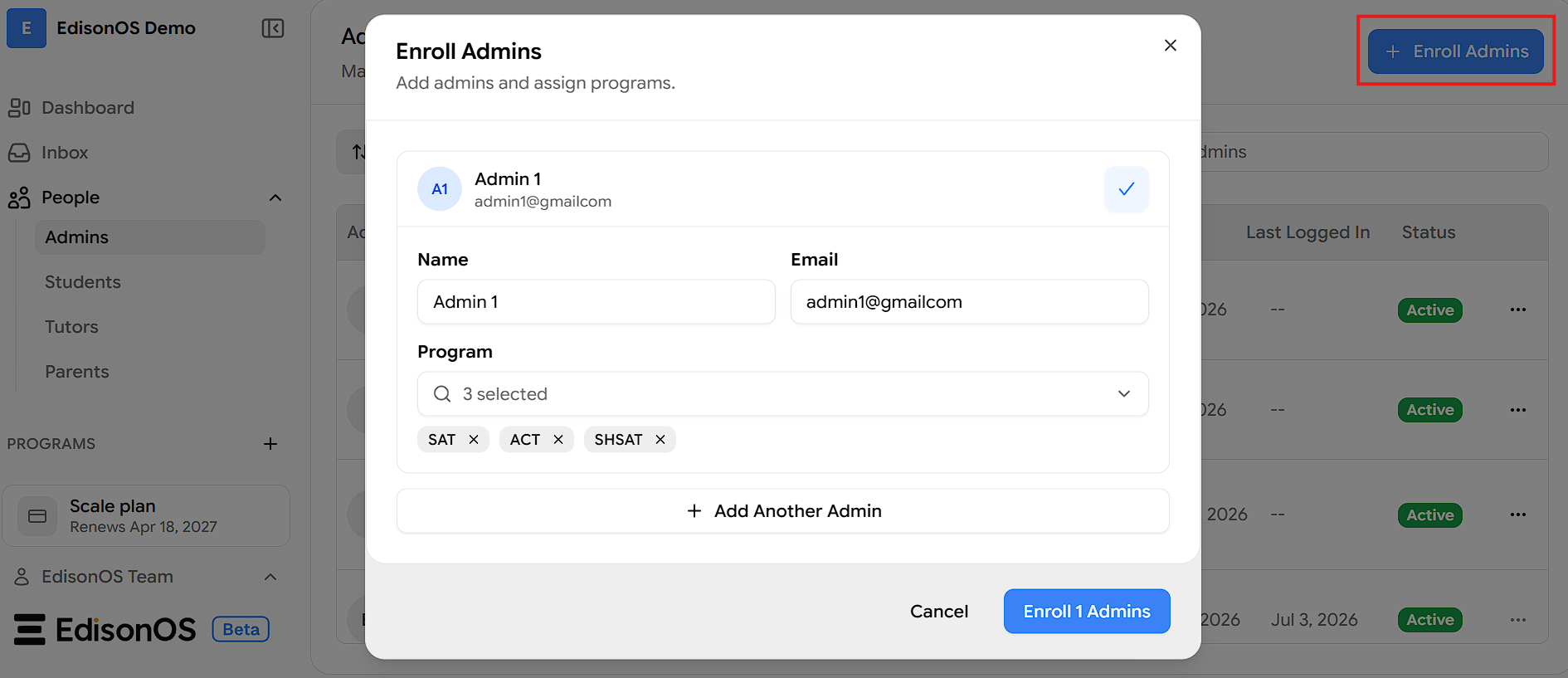
Navigate to the People section in the left sidebar and click on Admins.
Click the + Enroll Admins button on the top right corner.
In the Enroll Admins modal, fill in the following details:
Name: Enter the admin's full name.
Email: Enter the admin's email address.
Program: Select the program(s) you want to assign to the admin.
To add more admins at once, click + Add Another Admin and repeat the steps above.
Once done, click Enroll Admins to confirm.
Admins will receive their login credentials by email shortly after enrollment.
Enroll a Tutor
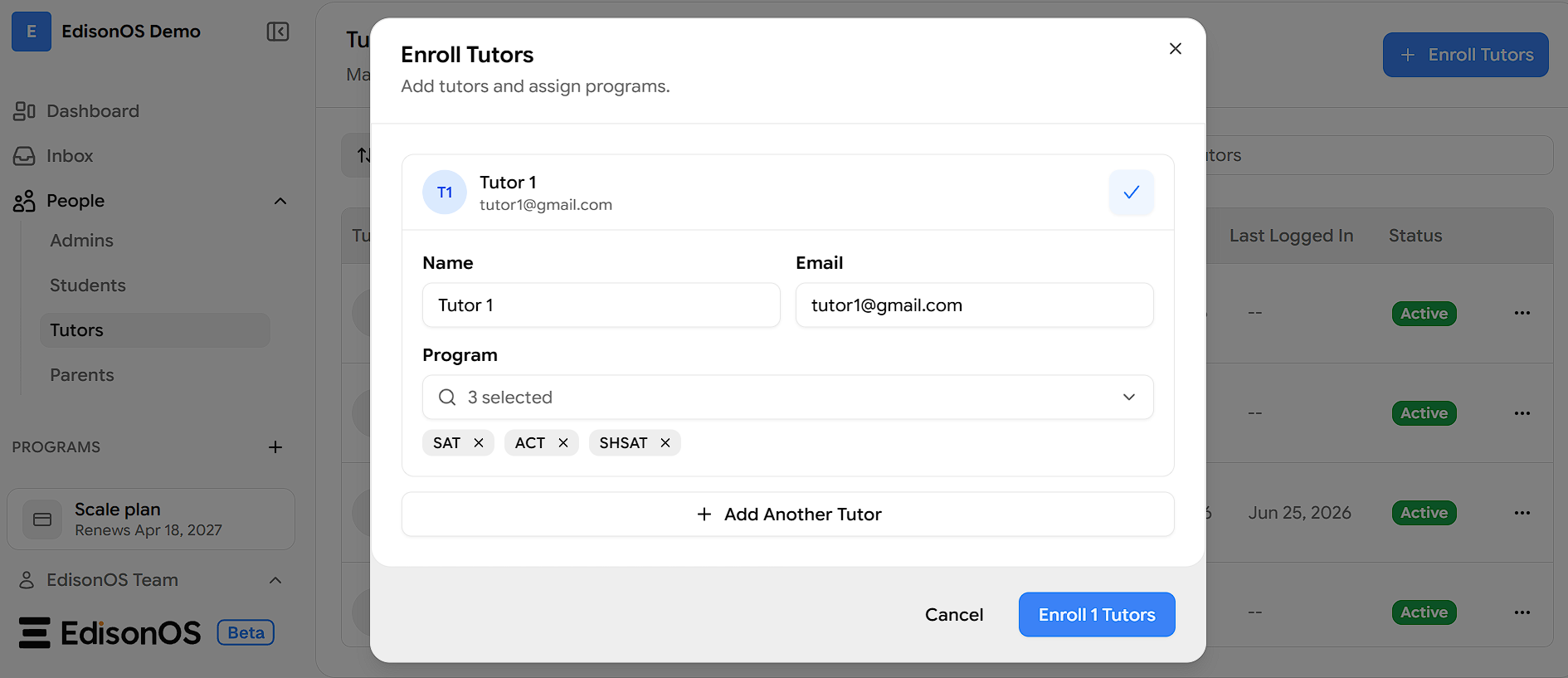
Navigate to the People section in the left sidebar and click on Tutors.
Click the + Enroll Tutors button on the top right corner.
In the Enroll Tutors modal, fill in the following details:
Name: Enter the tutor's full name.
Email: Enter the tutor's email address.
Program: Select the program(s) you want to assign to the tutor.
To add more tutors at once, click + Add Another Tutor and repeat the steps above.
Once done, click Enroll Tutors to confirm.
Tutors will receive their login credentials by email shortly after enrollment.
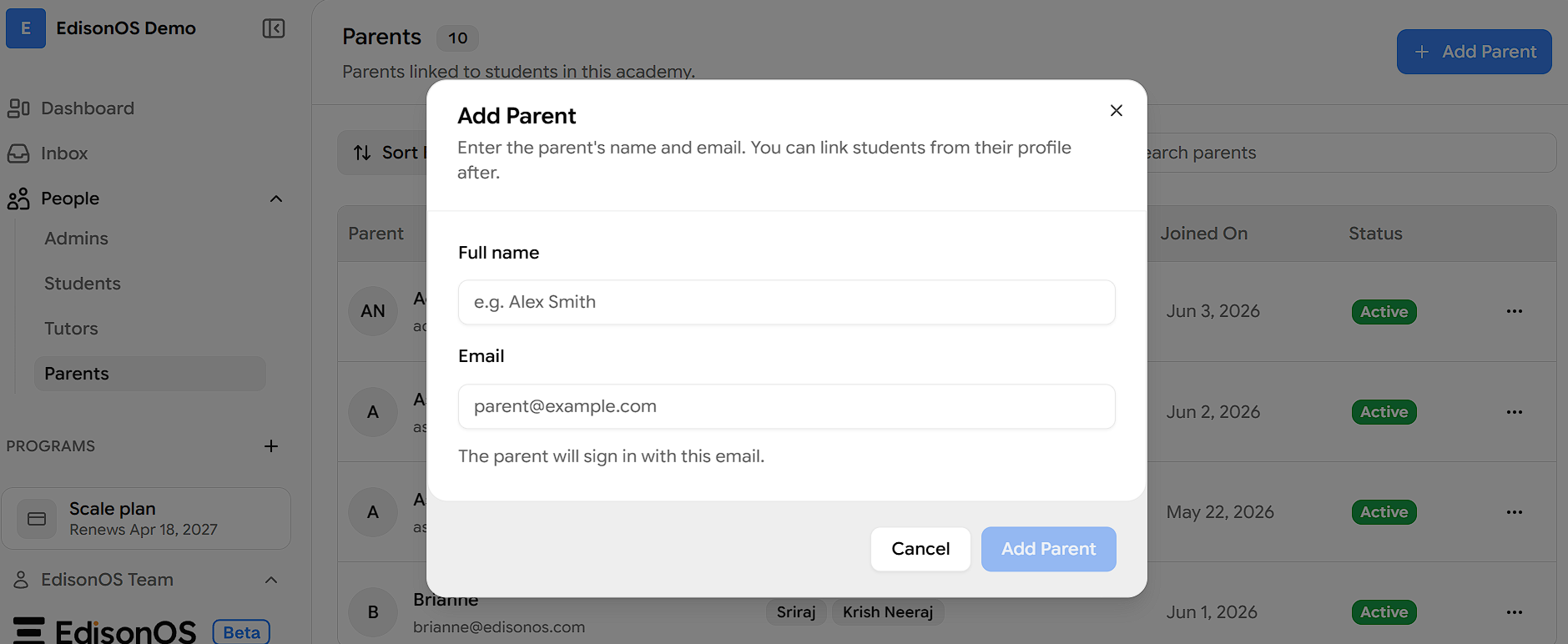
Enroll a Parent
Navigate to the People section in the left sidebar and click on Parents.
Click the + Add Parent button on the top right corner.
In the Add Parent modal, fill in the following details:
Name: Enter the parent's full name.
Email: Enter the parent's email address.
Once done, click Add Parent to confirm.
Managing a Student
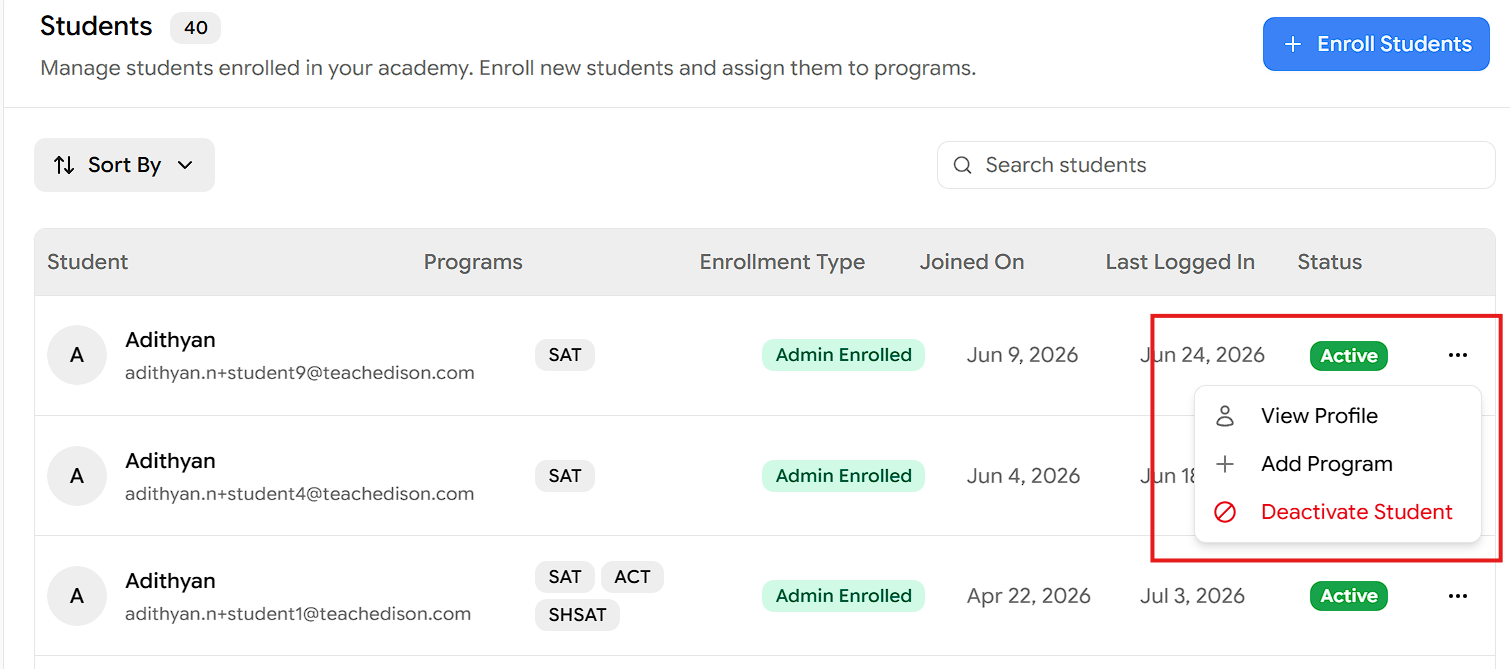
Once a student is enrolled, you can manage them by clicking the three dots (⋯) on the right side of the student's row. This will reveal the following options:
View Profile: View the student's full profile and activity details.
Add Program: Assign an additional program to the student.
Deactivate Student: Deactivate the student's access to the academy.
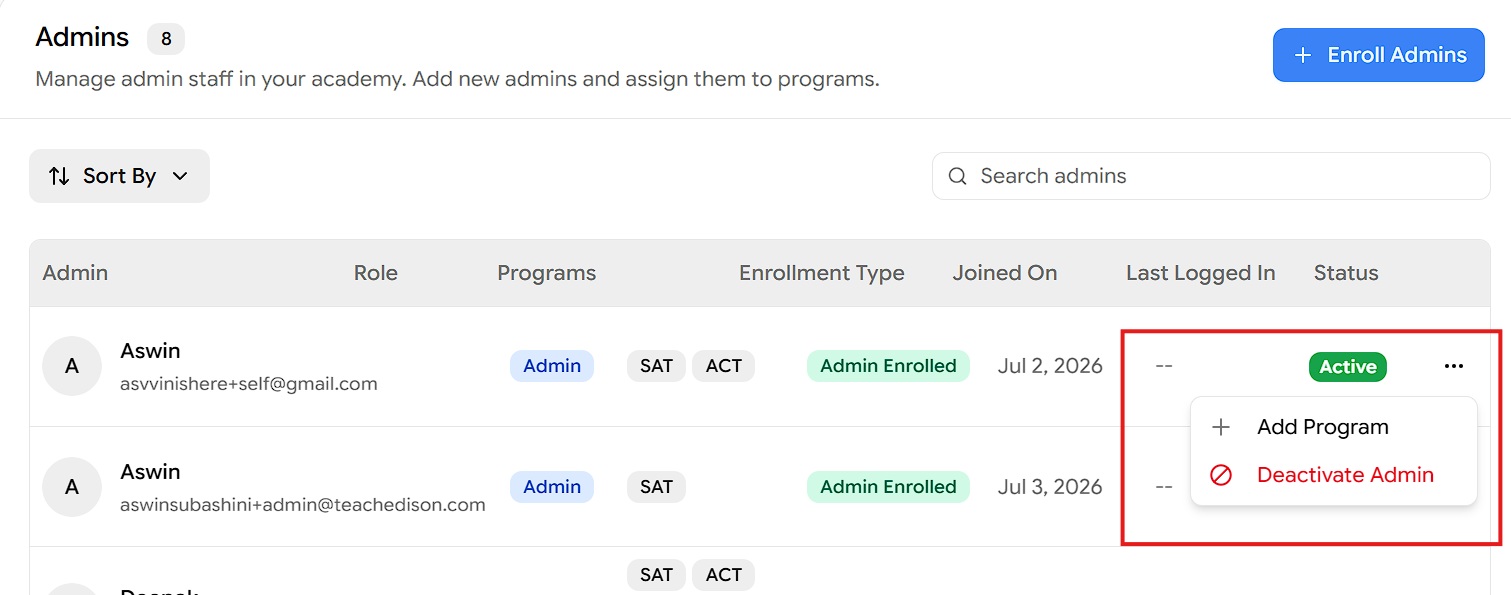
Managing an Admin
Once an admin is enrolled, you can manage them by clicking the three dots (⋯) on the right side of the admin's row. This will reveal the following options:
Add Program: Assign an additional program to the admin.
Deactivate Admin: Deactivate the admin's access to the academy.
Every academy has a single Owner - the person who created it and this role cannot be deactivated. Everyone else you enroll here is an Admin.